Using Azure AI Foundry Models in VS Code GitHub Copilot🔗︎
Goal🔗︎
Use Claude models that I have deployed in Azure AI Foundry from the GitHub Copilot Chat window in VS Code, authenticating with an API key rather than Entra ID.
What is GitHub Copilot?
GitHub Copilot is GitHub's AI coding assistant. In VS Code it provides inline suggestions and a chat/agent window. Its Bring Your Own Key (BYOK) feature lets the chat window use models from other providers, including your own Foundry deployments. BYOK chat works without a Copilot plan, but inline suggestions and semantic search still need one. On Copilot Business/Enterprise, an administrator must enable the BYOK policy.
Cost and governance
Consuming models through Azure AI Foundry is generally more expensive than going directly to the frontier vendor. Make sure appropriate governance is in place (budgets, alerts, quotas and an agreed owner for the resource) before giving anyone a key.
TL;DR🔗︎
Jump straight to the steps and the final config.
The problem🔗︎
I had this working several months ago and could not repeat it. Three things made it harder than it should be:
- The VS Code documentation doesn't say which of Foundry's several endpoints to use.
- The
chatLanguageModels.jsonfile lets you type an API key into it, but VS Code ignores a raw key and sends a blank one. This was the main issue. - Every misconfiguration gives a different, unhelpful error:
| Symptom | Cause |
|---|---|
Microsoft sign-in prompt ("GitHub Copilot wants to sign in using Microsoft"), then 502 User did not consent to login |
Provider group was named Azure, so VS Code used the built-in Azure provider (Entra ID). |
502 No BYOK model found for azure/Azure/<model> |
Same cause: the chat still pointed at the old azure group. |
Provider model 'customendpoint/…' is not registered |
The chat session target was set to Copilot instead of Local. |
401 Access denied due to invalid subscription key or wrong API endpoint |
The API key was a raw value in the file, so the x-api-key header was empty. |
Requirements🔗︎
- A Claude model deployed in Azure AI Foundry (setup not covered here). Note the deployment name and the API key.
- VS Code with the GitHub Copilot Chat extension (tested with 0.68.0).
-
The Messages endpoint of your Foundry resource:
https://<resource-name>.services.ai.azure.com/anthropic/v1/messages
Use the right endpoint
Foundry shows more than one endpoint. The project endpoint (…/api/projects/<project>) is for the Foundry SDK and agents, not for this. Use the …/anthropic/v1/messages endpoint. The "model version" setting in Foundry isn't part of the URL. Don't use the openai endpoint.
Steps🔗︎
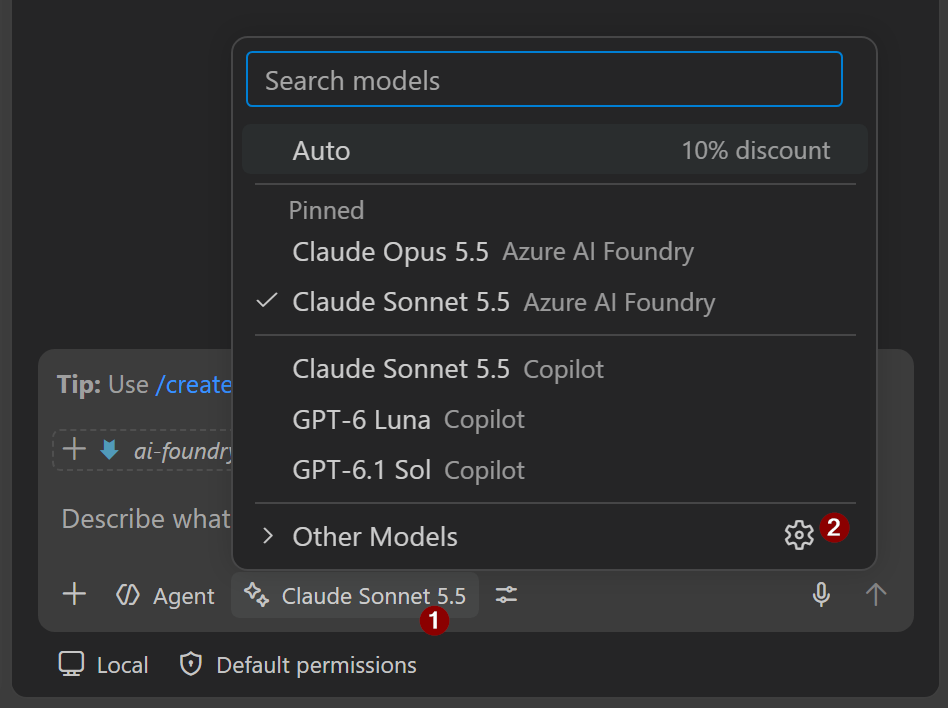
1. Open Manage Language Models — more info…
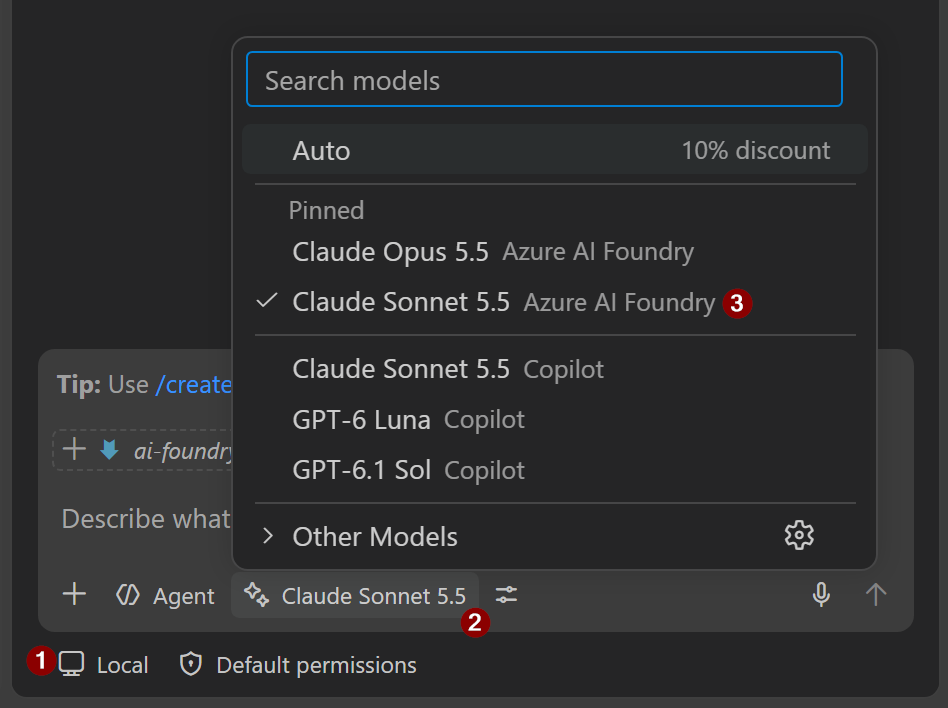
Click the model picker in the chat input , then the gear icon . Or press F1 and run Chat: Manage Language Models.
2. Add Models → Custom Endpoint , group name Azure AI Foundry — more info…
Name the group anything except Azure (1).
- Naming the group
Azurewill cause VS Code to try to use Entra/GitHub authentication. If it seems to freeze, check that the authentication dialogue is not hidden behind another window.
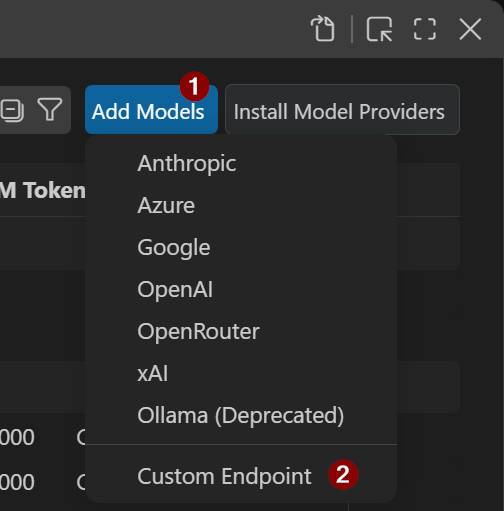
(Top, centre of screen:)

3. Enter API key → Select Messages API type — more info…
In the top centre input, paste in your API key from AI Foundry and press Enter. Then select Messages as the API type and press Enter. VS Code opens chatLanguageModels.json.
4. Edit chatLanguageModels.json to match the final config — more info…
The file lives at %APPDATA%\Code\User\chatLanguageModels.json. Edit it inside VS Code and save.
Key points:
idis the Foundry deployment name, and must be unique within the provider.urlis the full…/anthropic/v1/messagesendpoint.apiKey: do not paste in your API key. Apart from being insecure, VS Code won't read it. It should look something like${input:chat.lm.secret.543a845d9}.
5. Reload the window — more info…
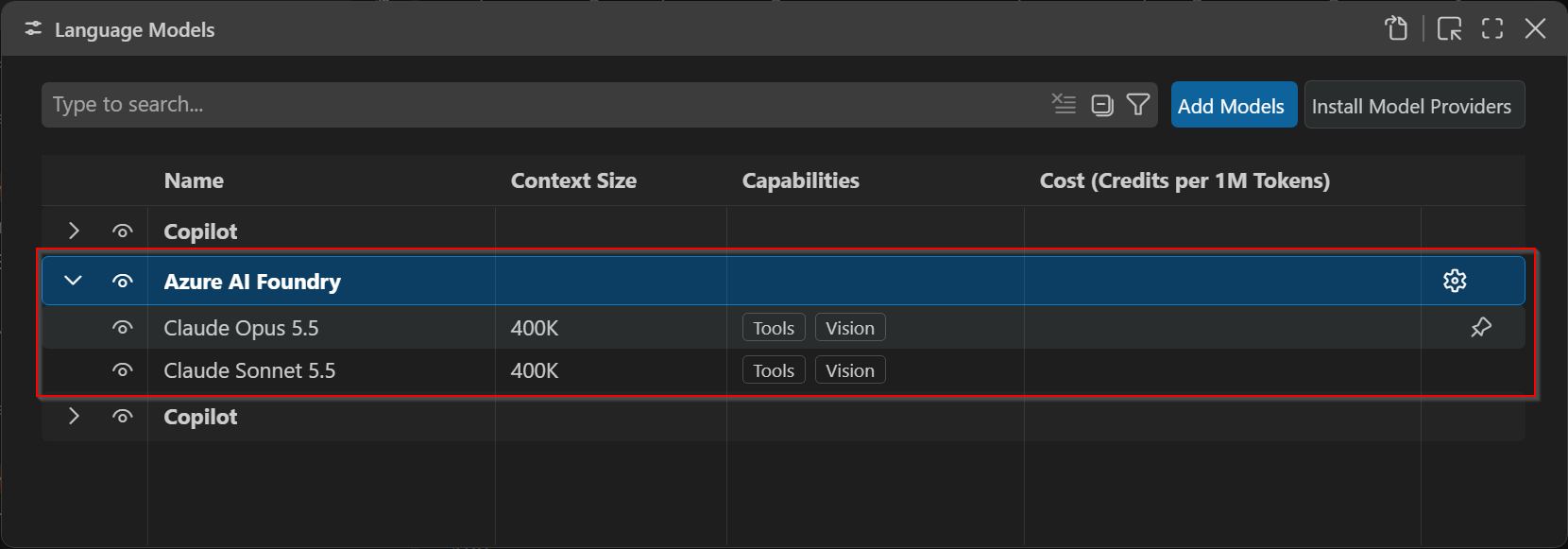
F1 → Developer: Reload Window. Check that the models appear under Azure AI Foundry in the Language Models editor, with the eye icon visible.
Pin model
On the right-hand side of the listed models, click the pin so it shows in the chat's model selector.
6. Start a new chat, set the session target to Local, pick the model — more info…
Use a new chat. In the chat input, set the session target to Local (not Copilot or Cloud), then click the picker and choose the Foundry model . Finally, send a message.
Changing API key🔗︎
The easiest way to change the API key is through the model picker. It automatically stores the key within VS Code, securely (I presume).
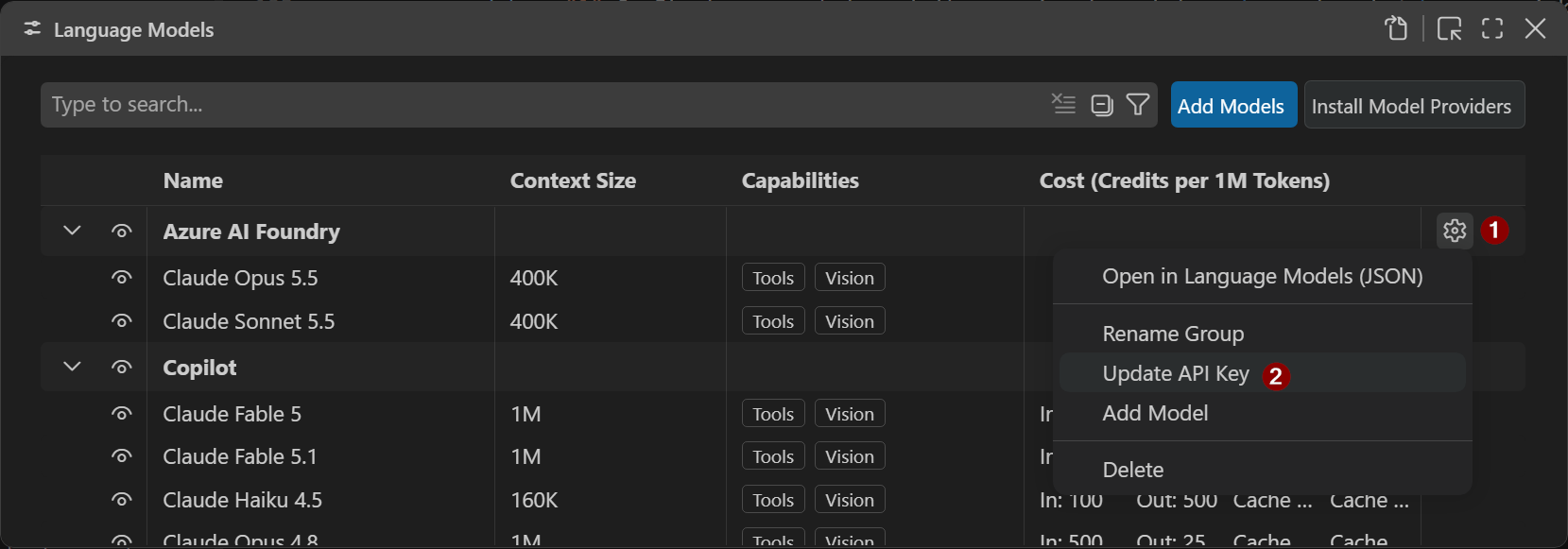
- In the chat window, click the language model picker → then the gear icon . Or press
F1and run Chat: Manage Language Models.
-
In the Language Models editor, click the gear next to
Azure AI Foundryand click Update API Key. -
Paste in your API key and press Enter. This will update
%APPDATA%\Code\User\chatLanguageModels.json.
Note
VS Code handles the key storage (I presume, securely) and writes an ${input:…} reference into the apiKey line. Don't paste the key into the JSON.
Final config🔗︎
Settings for Claude Sonnet 5.5 and Claude Opus 5.5.
[
    {
        "name": "Azure AI Foundry",
        "vendor": "customendpoint",
        "apiKey": "${input:<written by VS Code>}",
        "apiType": "messages",
        "models": [
            {
                "id": "claude-sonnet-5-5",
                "name": "Claude Sonnet 5.5",
                "url": "https://<resource-name>.services.ai.azure.com/anthropic/v1/messages",
                "toolCalling": true,
                "vision": true,
                "contextWindow": 400000,
                "maxOutputTokens": 32000
            },
            {
                "id": "claude-opus-5-5",
                "name": "Claude Opus 5.5",
                "url": "https://<resource-name>.services.ai.azure.com/anthropic/v1/messages",
                "toolCalling": true,
                "vision": true,
                "contextWindow": 400000,
                "maxOutputTokens": 32000
            }
        ]
    }
]
| Setting | Why |
|---|---|
vendor: customendpoint |
The Custom Endpoint provider. azure triggers the Entra ID flow. |
apiType: messages |
Foundry's Claude endpoint speaks the Anthropic Messages API. |
apiKey: ${input:…} |
Written by VS Code when you set the key in the UI. A raw key is ignored. |
id |
The Foundry deployment name. Unique per provider, or entries collapse into one. |
toolCalling: true |
Required, or the model won't show up for agent chat. |
contextWindow / maxOutputTokens |
Total window and per-reply cap. VS Code works out input as contextWindow − maxOutputTokens. |
Context window and output🔗︎
- VS Code treats input + output as the model's context window. If you set the two separately, the sum is what the context bar shows. Mine showed 144K until I changed it.
- Anthropic documents a 1M context window and 128K max output for current Claude models, including on Foundry. Check the current docs for your model.
- Larger isn't automatically better. Cost rises, and VS Code warns that quality may decline near the limit. I settled on 400K.
- The TPM/RPM figures in Foundry are rate limits, not context sizes.
Final thoughts🔗︎
- Static key: A Foundry API key is long-lived and shared. It grants access to every deployment on the resource, with no per-user identity, conditional access or useful audit trail. That is the trade-off of avoiding Entra ID.
- Rotation: If a key is ever pasted into the JSON, a screenshot or a chat, regenerate it in Foundry and update it through the UI.
- Where to use it: Suitable for personal or dev resources. For shared or production resources, prefer Entra ID with RBAC and disable key authentication on the resource.
- Data flow: With BYOK, prompts and workspace context go directly to your Foundry endpoint rather than through GitHub's service. Check this against your organisation's data policies.
References🔗︎